React Native - Run on Android/iOS devices
Note (from August 2019): This doc is pretty outdated (first written in January 2016) and helped me a lot when React Native was still much more immature than it is now. Consider using expo these days which provides a much easier React Native workflow.
Configurations
Android configuration
Open Android SKD Manager: Open Android Studio and at bottom of Start screen go to Configure/SDK Manager
iOS and Android Emulators
iOS
- open project file in xcode
On OSX you can use the open command:
open NameOfProject/ios/NameOfProject.xcodeproj- Build project in Product/Build (will open a terminal - if you didn’t start the development server in another terminal window yet)
- Wait until the react packager finished loading and hit run
- make a change in
index.ios.js(or any other file) and hitCmd + Rto reload Cmd + DorCmd + ctrl + zto open the React Native Dev Menu
Android
Emulator from Android Studio:
- Open
Android Studio, open any project and then in the top bar go toTools > AVD Manager. - Run an emulator.
- The emulator should now appear when typing
adb devices
Other option: Genymotion
- Open genymotion and run an emulator and check whether the device is running by running
adb devices. - Load the app to the Android emulator
react-native run-androidNotes
IMPORTANT: Make sure all other virtual machines are turned off! Including Docker for Mac!
Check it with:
android avdWhen the Android emulator is runngin, stretch the emulator windows such that the menu-item (see image) are visible. Only then the shortcut Cmd + M will open the React Native Dev Menu where you have to press Reload JS to make changes visible.
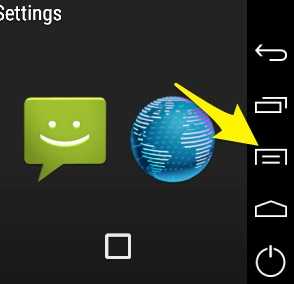
In case something doesn’t work do the following.
- stop currently running development server
- Run
react-native startto start a new one.
Errors
Perhaps another process is already using the same port. Run the following command to find out which process:
lsof -n -i4TCP:8081You can either shut down the other process:
kill -9 <PID>or run the packager on different port.
On Android it can happen that the app will appear in the application list of the device, but will still not run. For it to run, further commands are necessary. The following is taken from this stackoverflow discussion:
To run with local server, run the following commands under your react-native project root directory
react-native start > /dev/null 2>&1 &
adb reverse tcp:8081 tcp:8081
To run without a server, bundle the jsfile into the apk by running:
- Create an assets folder under
android/app/src/main - Execute the following:
curl "http://localhost:8081/index.android.bundle?platform=android" -o "android/app/src/main/assets/index.android.bundle"Monitor
View files in emulator with the Android Device Monitor:
monitorRun project on a real device
Link to React Native docs about running on device
iOS
- Change IP address in
ios/MyApp/AppDelegate.mfromlocalhostto IP Address of your notebook (e.g.192.168.10.10(find it in System Preferences/Network). - In Xcode select your phone as build target and press “Build and run”
Android
- These prerequisits which have to be fulfilled.
- Run
$ react-native run-android - Open the React Rage Shake Menu from within your app on your android device, go to
Dev Settingsand then toDebug server host & port for device. There enter your server IP (IP of your computer) and host8081, e.g.192.168.50.35:8081. On a mac you can find the IP of your computer atSystem Preferences -> Network -> Advanced... -> TCP/IP -> IPv4 Address. - Open the Rage Shake Menu again and click
Reload JS.
Discuss on Twitter ● Improve this article: Edit on GitHub